
Productivity · Notes
memorit
A memo app you use like a website

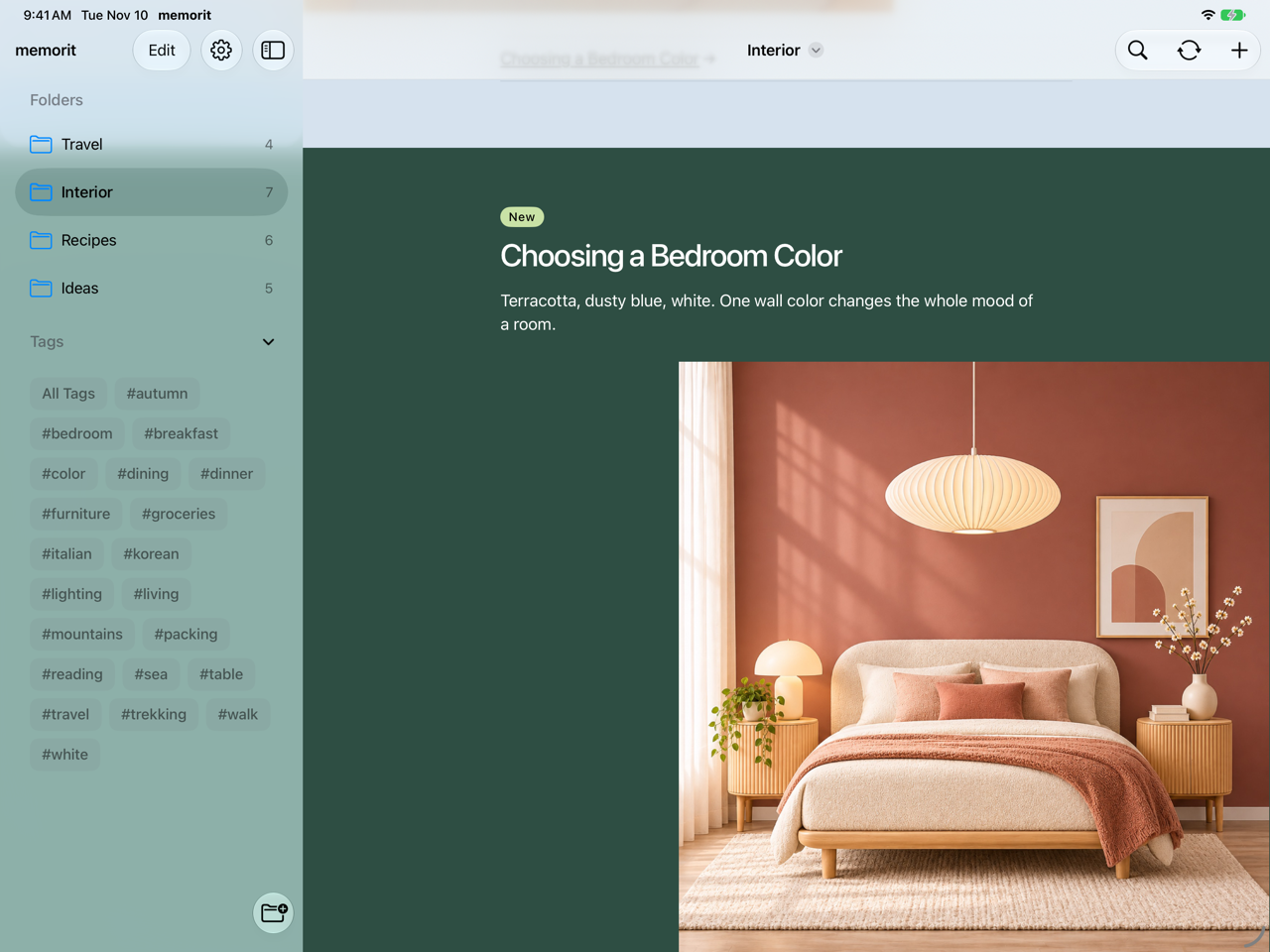
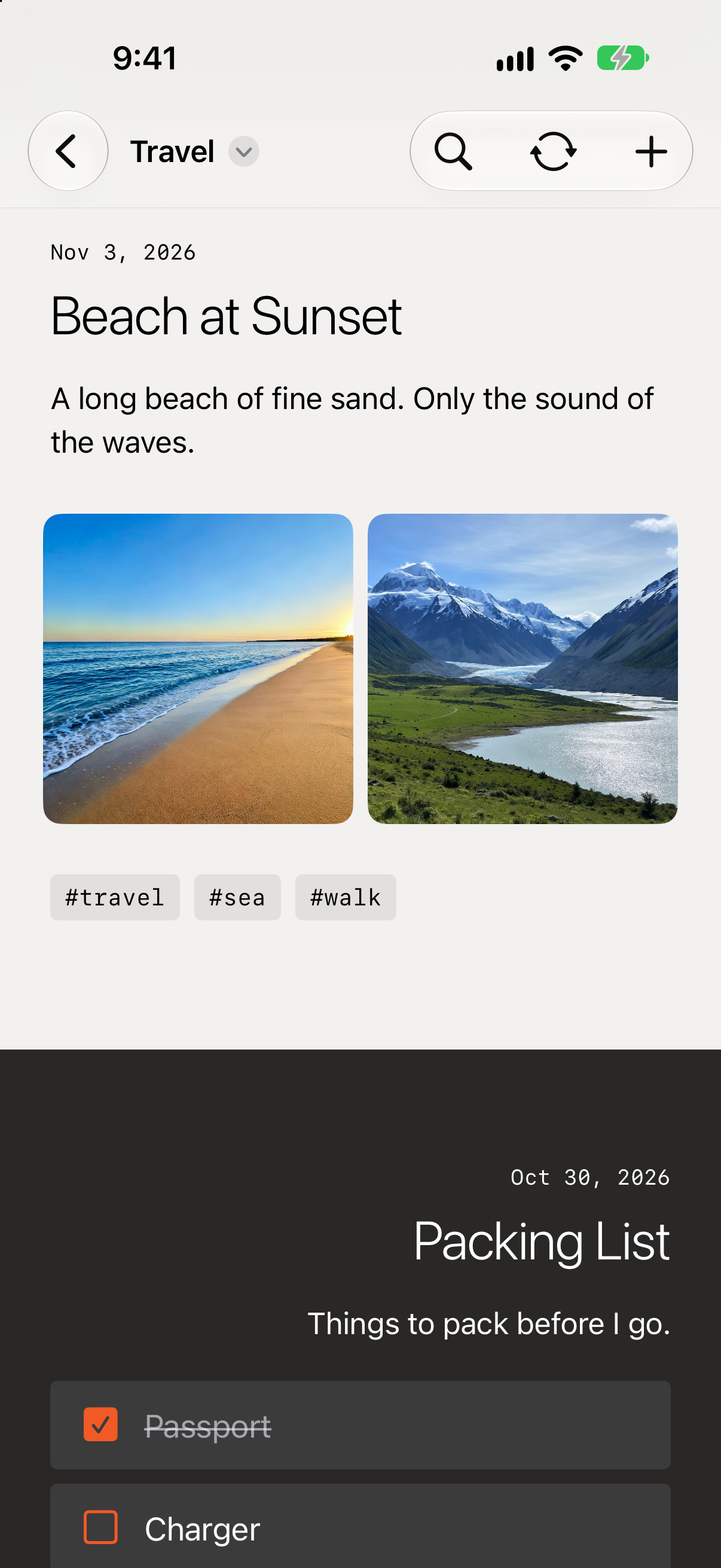
Memo pages that come together like a website.
Open a memo folder and its memos flow one after another like a blog. See a folder as a website and each memo as a page, right away.
Notes that read like a website
Folders become menus and notes become pages.
Nine themes
From magazine to newspaper, pick one for each folder.
Automatic Design
The app lays out each note to fit its photos and links.
Memos
Light, easy memos.
Each memo holds a title, text, a checklist, tags, and photos. Add links to other memos and to web addresses, shown as buttons or small preview cards.

Themes
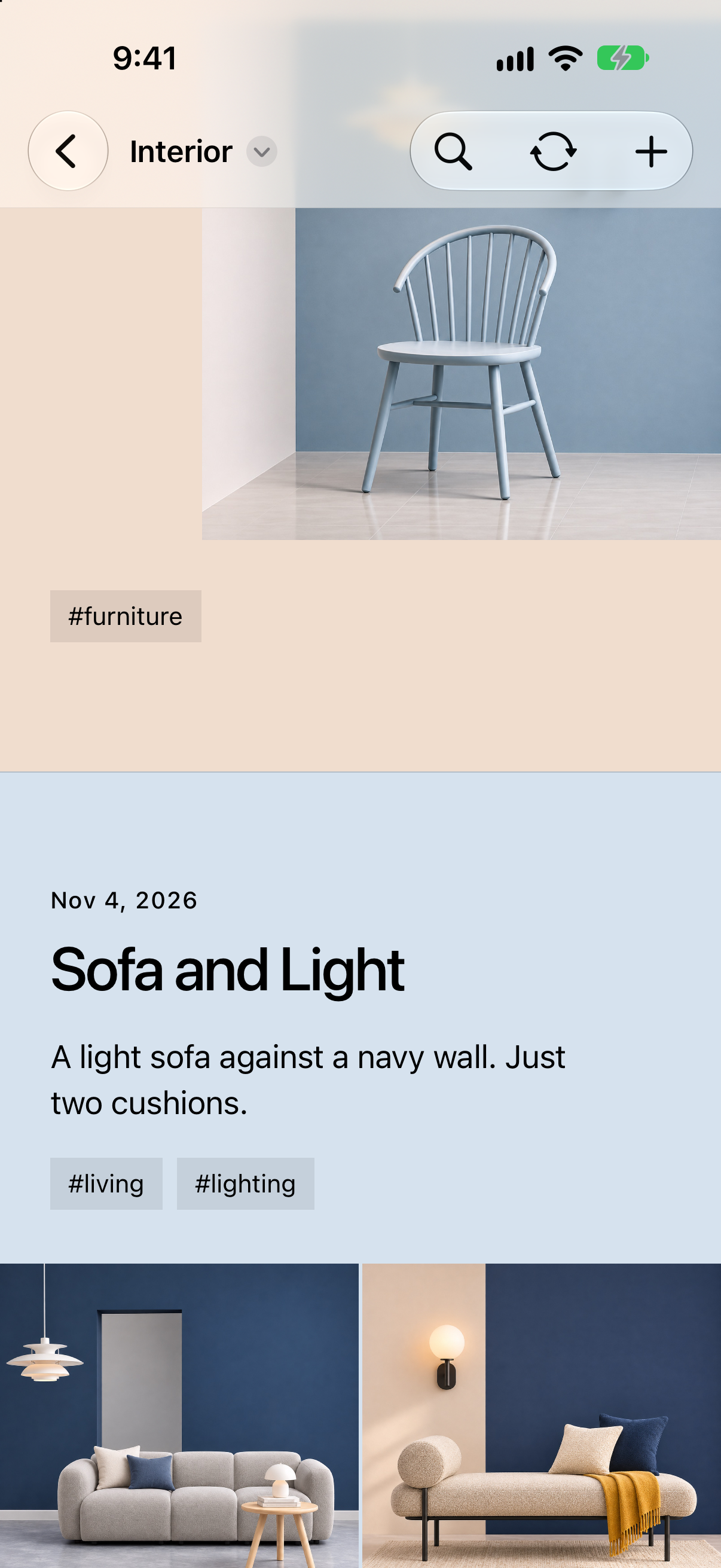
A theme for every folder.
Choose one of 9 themes for each folder: Basic, Interior, Magazine, Orange Lab, Newspaper, Clean, Samba, Notebook, and Gallery.
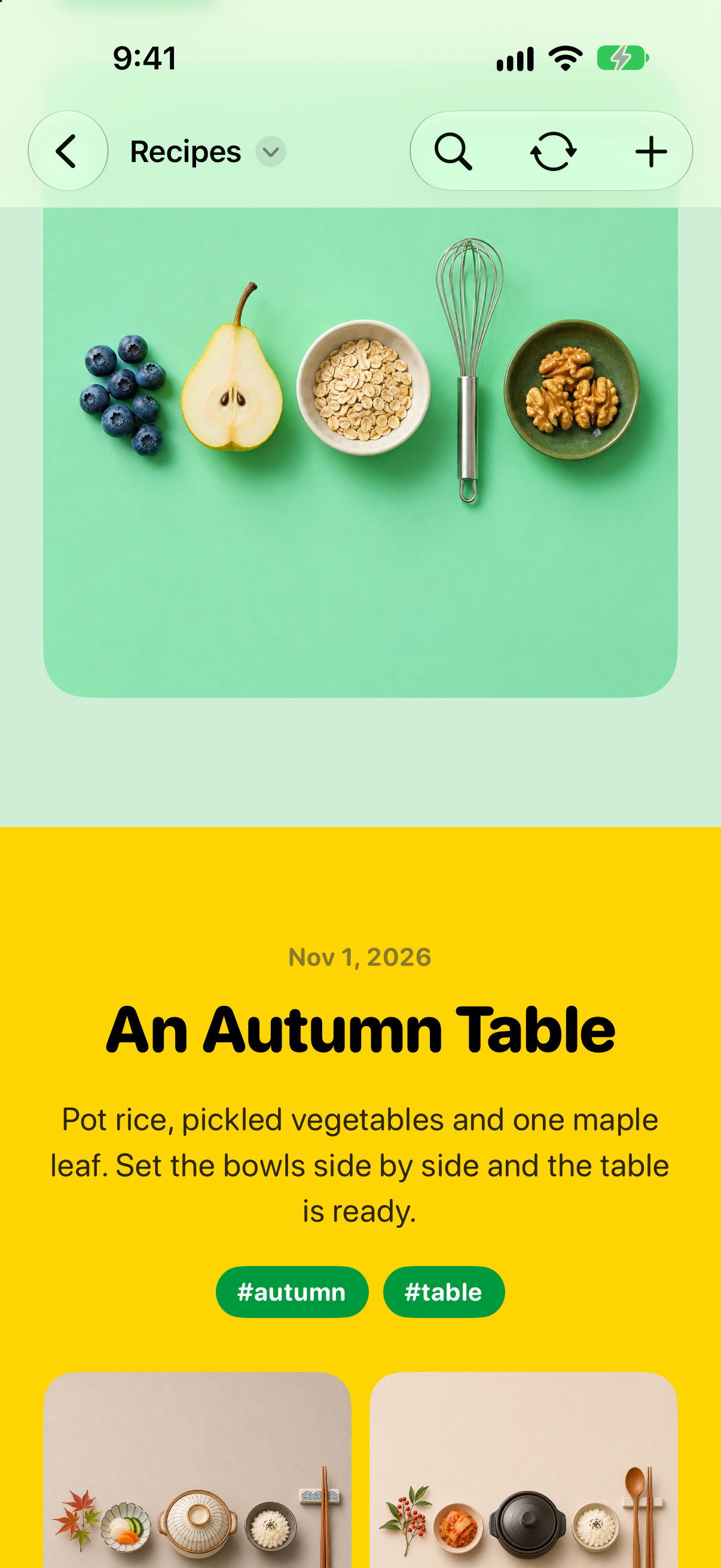
Automatic Design
The app takes care of the layout.
Turn on Automatic Design and the app picks colors and layouts for each memo to suit its content, such as how many photos and links it has.
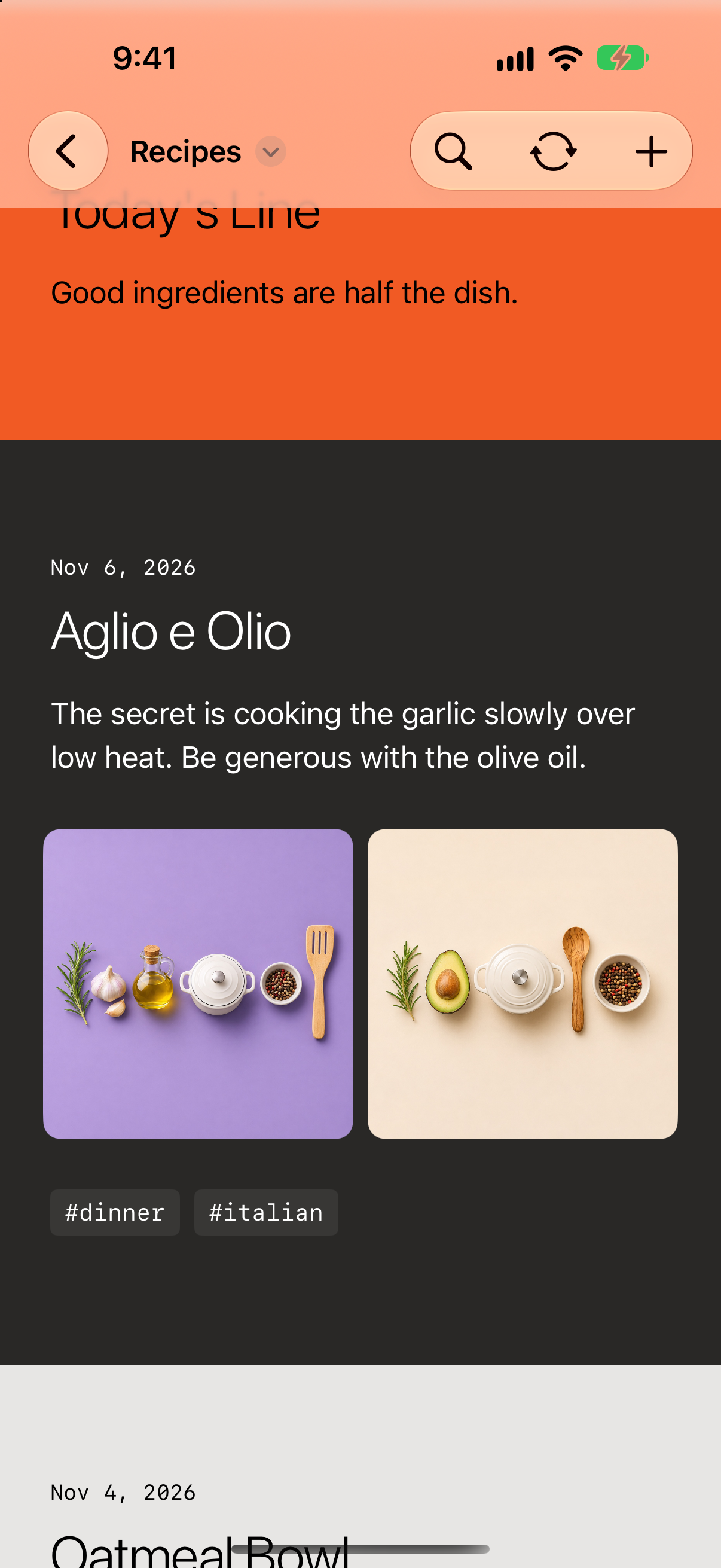
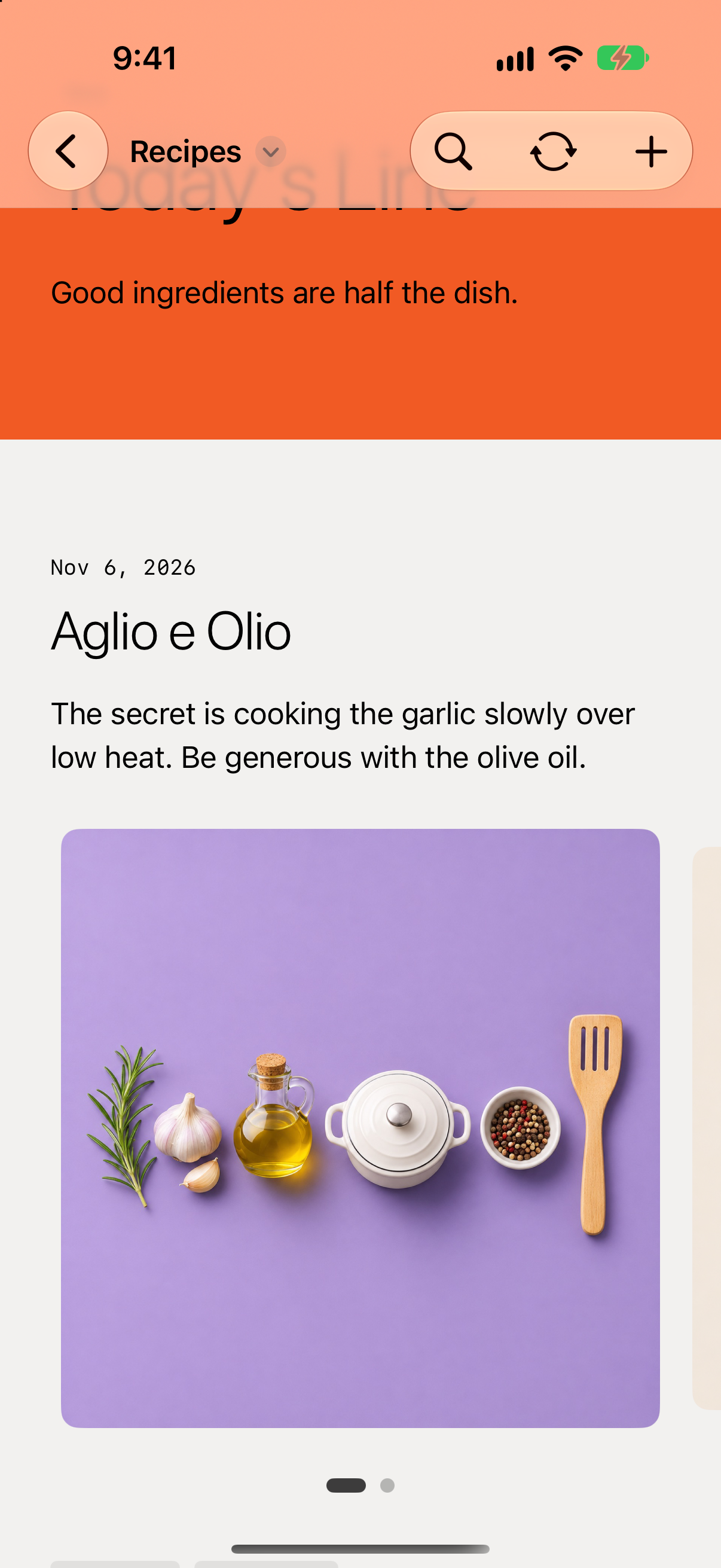
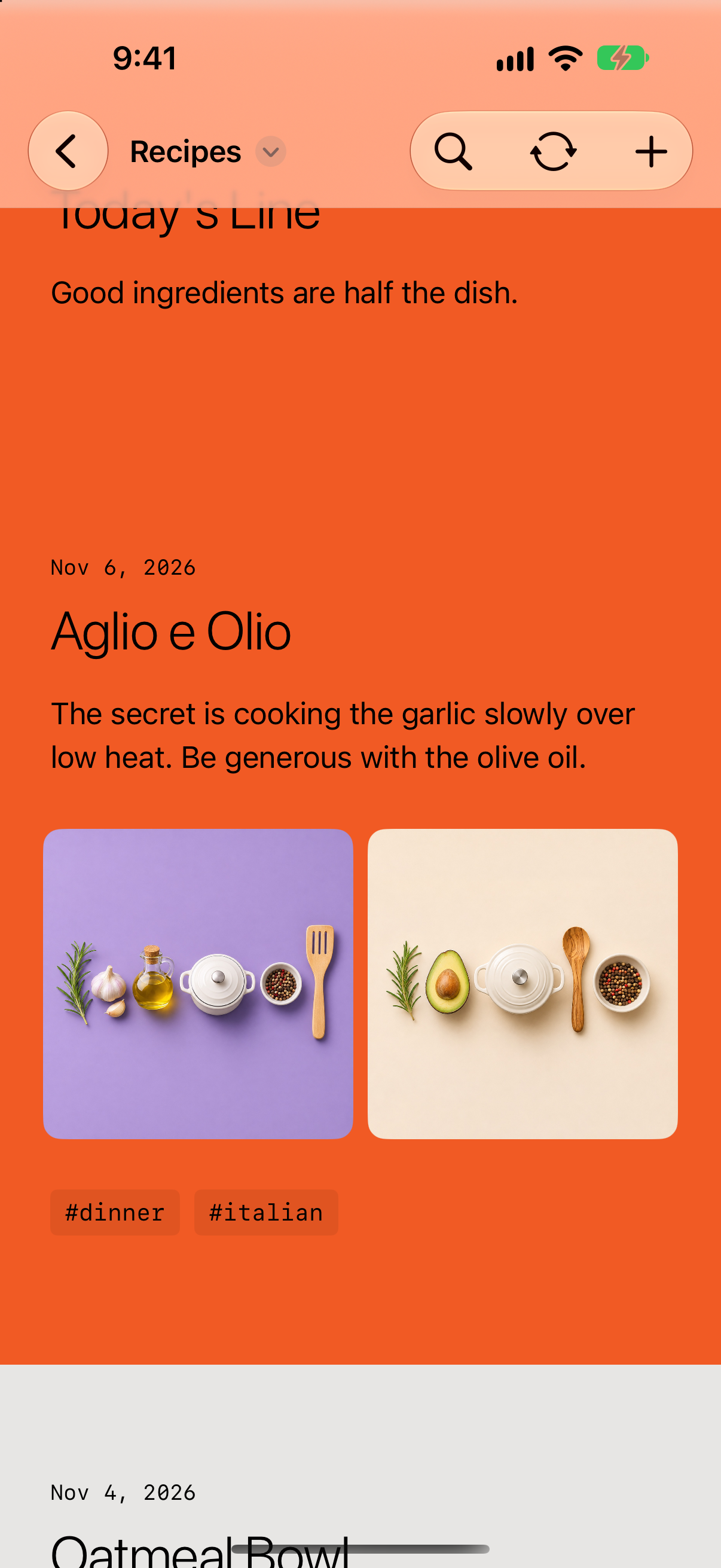
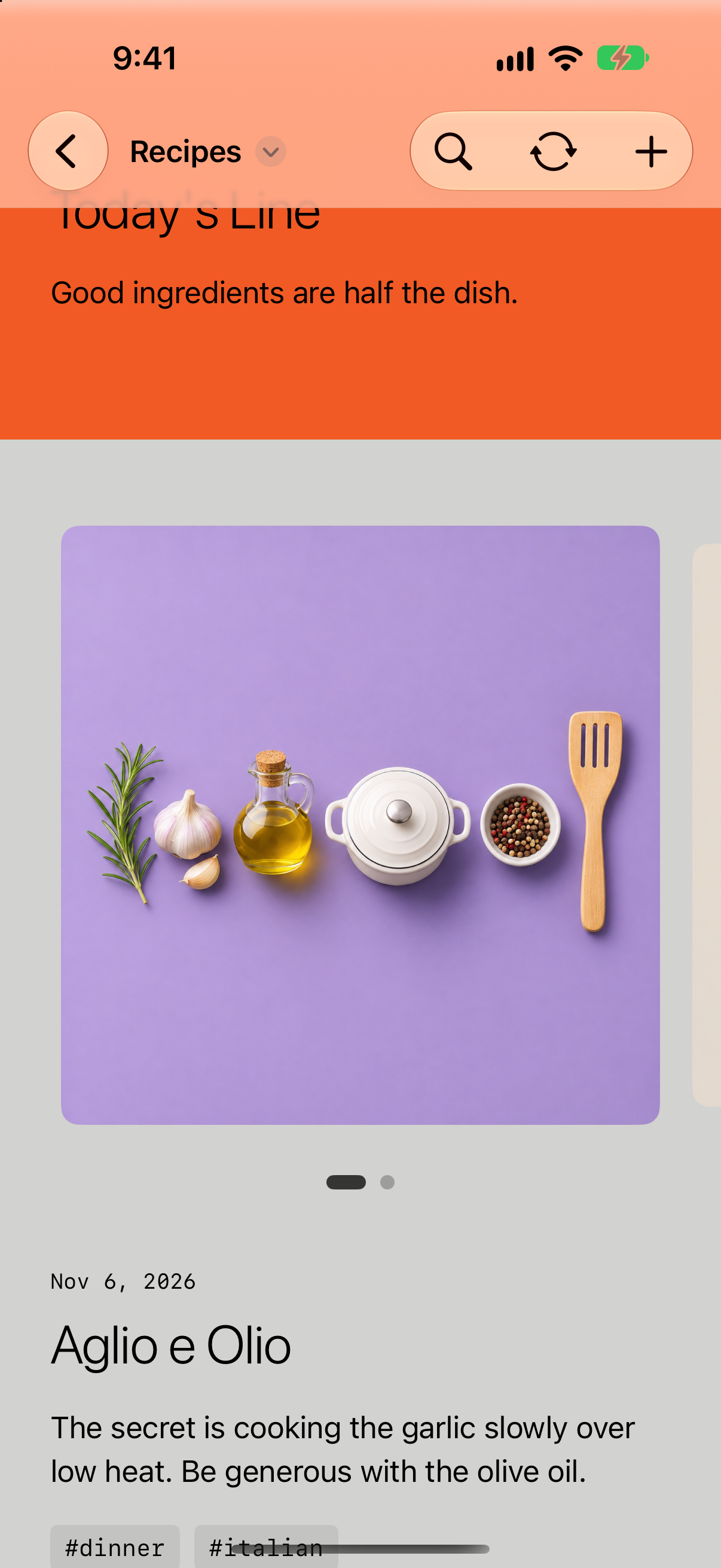
Photos
Notes where photos shine.
Travel logs, recipes, interiors—even notes full of photos are laid out beautifully, like a polished website.
And more
Search & tags
Find memos by title, text, checklist, and tags. Tap a tag to see every memo with that tag on one page.
Export as PDF or HTML
Export a memo or a whole folder as a PDF or HTML and send it to Files, Mail, and more.
Recently Deleted
Folders and memos you delete can be restored for 30 days.
iCloud sync
Folders, memos, photos, links, checklists, and tags stay in sync across devices.
Free, and more with Pro.
Free
- 1 folder of your own, up to 5 memos per folder
- 3 themes (Basic, Clean, Notebook)
- Automatic Design, search, tags, and export
- iCloud sync
memorit Pro
- No limits on folders and memos
- All 9 themes
Monthly or yearly subscription. New subscribers start with a 1-week free trial.
Support
For questions, bug reports, or feedback about memorit, please email us.
Including your device model and iOS version helps us help you faster.
What can I do for free?
Besides the Get Started folder, you can use 1 folder of your own with up to 5 memos and 3 themes for free. Automatic Design, search, tags, export, and iCloud sync are free to use. A memorit Pro subscription (monthly or yearly) removes the folder and memo limits and unlocks all themes.
How do I manage or cancel my subscription?
Open the Settings app > Apple Account > Subscriptions and choose memorit Pro, or tap Manage Subscription in the app’s settings. The free trial or subscription renews automatically unless you cancel at least 24 hours before it ends.
How do I keep my devices in sync?
Sign in to iCloud with the same Apple Account, and your folders, memos, photos, links, checklists, and tags stay in sync across devices. If the same memo is edited on two devices, the later edit is kept. Without iCloud, everything is kept only on this device.
How do I save a memo or folder as a file?
Tap the title at the top of a folder or memo page, then choose Export as PDF or Export as HTML. The PDF is one long page that looks just like the screen, and the HTML comes as a zip file with the HTML file and a folder of images. When it is ready, choose where to save it in the iOS share sheet.
How do I restore a deleted memo?
In Recently Deleted in the sidebar, swipe or touch and hold a memo or folder and choose Restore. Items are deleted permanently 30 days after you delete them.
How do I hide the Get Started folder?
Get Started is a read-only folder that shows how to use memorit. Tap the settings button at the top of the sidebar and turn on Hide Getting Started Folder to remove it from the sidebar, tags, and search.